
The average person now has dozens of online accounts, and nobody can remember a unique, strong password for each one. That is why most people reuse the same few passwords, and why one leaked website so often leads to stolen email, social media and bank access. A password manager solves this by remembering every password for you. This guide explains how they work, whether they are safe, and how to choose one.
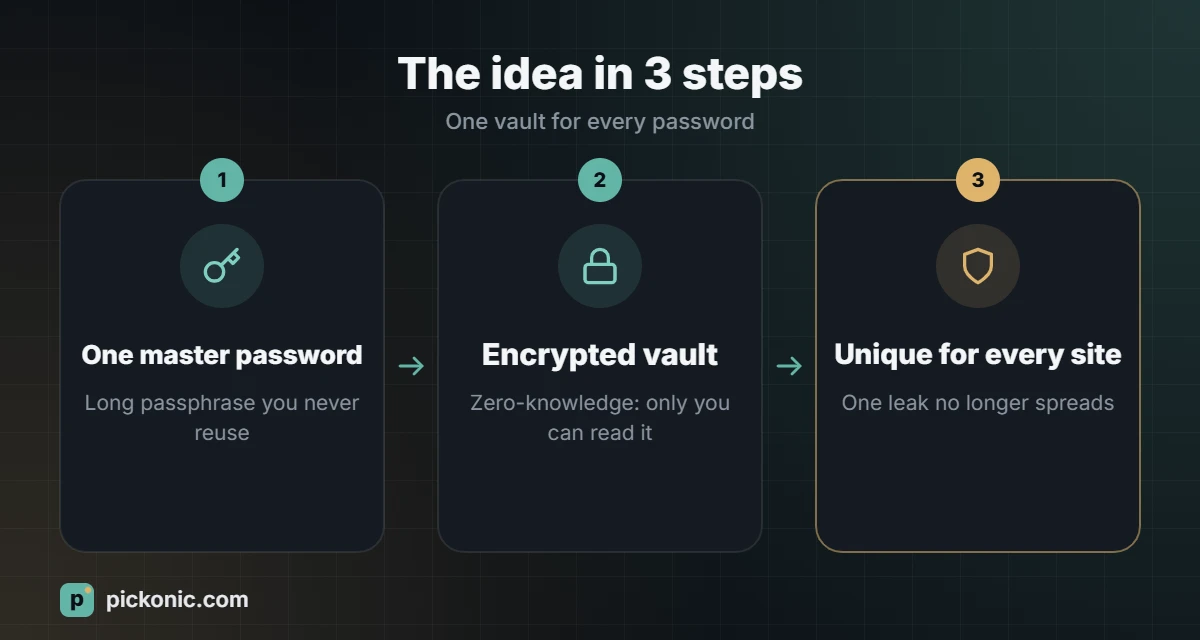
How a password manager works
You create one strong master password. The manager stores all your other passwords in an encrypted “vault”. When you visit a site, it fills in the username and password for you, and when you sign up somewhere new, it generates a long random password and saves it.
Good password managers use zero-knowledge encryption: your vault is encrypted on your own device using your master password before anything is uploaded. The company stores only scrambled data and cannot read your passwords, even if its servers are breached. This is why your master password must be strong and why, with most services, it cannot be recovered if you forget it.
Are password managers safe?
No system is perfect, and password manager companies have been targeted by attackers. But compare the alternatives. Reusing passwords means one breach exposes many accounts. Writing passwords in a notes app or a spreadsheet leaves them unencrypted. A well-designed password manager with a strong master password and two-factor authentication is far safer than either.
Types of password managers
| Type | Examples | Pros | Cons |
|---|---|---|---|
| Built into your device or browser | Apple Passwords, Google Password Manager | Free, already installed, very easy | Works best inside one ecosystem; sharing across platforms can be awkward |
| Cross-platform cloud managers | Bitwarden, 1Password, Proton Pass | Work on any phone, computer and browser; secure sharing; extra security tools | Some features or plans are paid |
| Offline, self-managed | KeePassXC and compatible apps | Your vault never touches a company server | You handle syncing and backups yourself |
If you use only Apple devices, or only Android with Chrome, the built-in manager is a solid start. If you mix Windows, Android and iPhone, or share passwords with family, a cross-platform manager is usually smoother.
Features to compare
- Zero-knowledge encryption and a published security model, ideally with independent security audits.
- Apps for all your devices and browser extensions for the browsers you use.
- Reliable autofill on both websites and mobile apps.
- Two-factor authentication to protect the vault itself, including support for security keys.
- Passkey support. Passkeys are a newer, phishing-resistant way to sign in without a password, and many managers can now store them.
- Password health report that flags weak, reused or leaked passwords.
- Secure sharing with family members or colleagues, without sending passwords over chat.
- Emergency access so a trusted person can reach your vault if something happens to you.
- Easy export, so you are never locked in.
Free vs paid
Free plans from reputable providers are good enough for many people, especially for a single user. Paid plans usually add family sharing, file storage, advanced two-factor options, priority support and security reports. Price varies by provider and region, but most personal plans cost less per year than a single takeaway meal per month. Try the free plan or trial first and move all your accounts in before deciding.
Moving to a password manager in one afternoon
- Create a strong master password. A passphrase of five or six random words is both strong and memorable. Our password generator can create one for you.
- Turn on two-factor authentication for the manager immediately.
- Import passwords saved in your browser. Most managers can do this automatically. Then delete them from the browser so they are not stored twice.
- Fix the most important accounts first: email, bank, phone carrier, government services and social media. Give each a new, unique generated password of 16 characters or more.
- Update the rest gradually, each time you log in to a site.
- Store recovery codes for your manager somewhere safe offline.
Mistakes to avoid
- Using a weak or reused master password.
- Skipping two-factor authentication on the vault.
- Saving your master password inside the manager only, with no other memory or backup plan.
- Installing browser extensions from unofficial sources. Always download from the provider’s website or official stores.
A password manager protects your passwords; two-factor authentication protects you when one of them leaks anyway. Our comparison of 2FA methods explains which option to turn on first.
Frequently asked questions
What happens if I forget my master password?
With most zero-knowledge managers, the provider cannot reset it. Some offer recovery options such as a recovery kit, biometric unlock on a trusted device or emergency contacts. Set these up on day one.
Is the browser’s built-in password manager enough?
For many people, yes, especially if they stay in one ecosystem. The main reasons to switch are cross-platform use, family sharing and better security reports.
Do I still need two-factor authentication on other accounts?
Yes. A password manager stops reuse; two-factor authentication protects you if a password is stolen anyway. Use both.