
A strong password is no longer enough on its own. Passwords leak in data breaches, get typed into fake login pages, and are guessed by automated tools. Two-factor authentication (2FA) adds a second check, so a stolen password alone cannot open your account. But not all second factors are equal. This guide compares SMS codes, authenticator apps, security keys and passkeys, and helps you choose the right protection for each account.
What two-factor authentication means
Authentication factors fall into three groups: something you know (a password or PIN), something you have (a phone or a physical key) and something you are (a fingerprint or face). 2FA combines two of them. Even if an attacker learns your password, they still need your phone or key.
The four main options compared
| Method | How it works | Protection | Convenience |
|---|---|---|---|
| SMS code | A one-time code sent by text message | Basic. Vulnerable to SIM swap attacks and phishing | Very easy |
| Authenticator app | An app generates a new 6-digit code every 30 seconds | Good. Not tied to your SIM, but codes can still be phished | Easy |
| Security key | A small USB or NFC device you tap or plug in | Very strong. Resistant to phishing | Easy once set up; you must carry it |
| Passkey | A cryptographic key stored on your phone, computer or password manager, unlocked with fingerprint, face or PIN | Very strong. Resistant to phishing | Very easy |
The key difference is phishing resistance. A code from SMS or an app can be typed into a fake website and used by an attacker within seconds. Security keys and passkeys check the real website address automatically, so they will not work on a look-alike site.
Authenticator apps: the best everyday upgrade
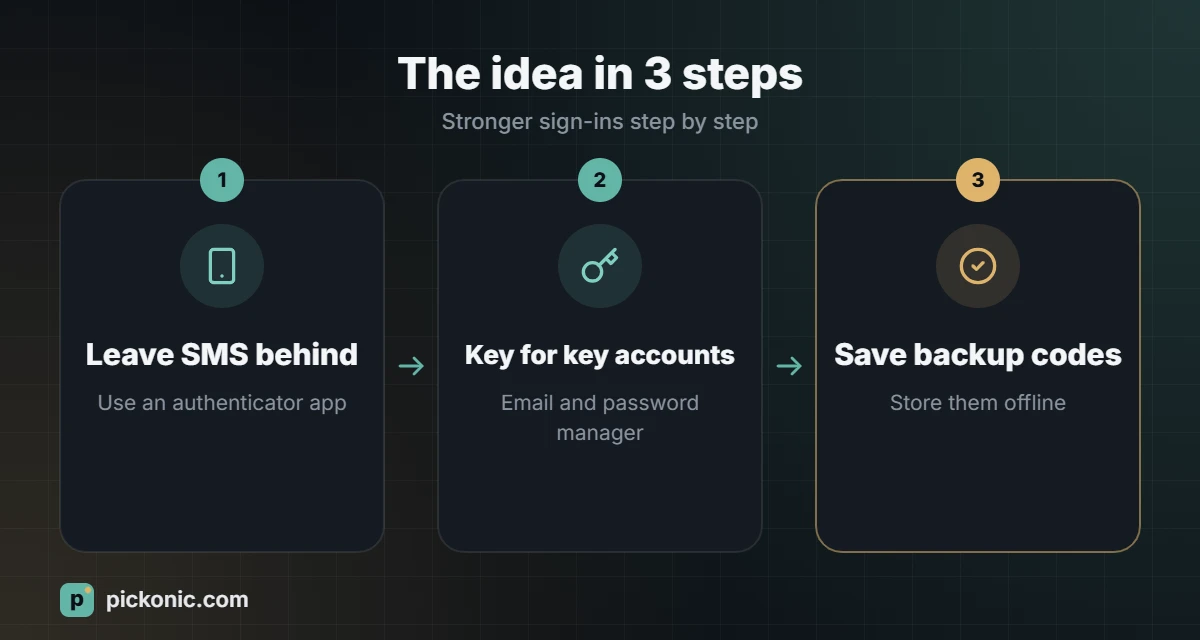
If you only change one thing, move your important accounts from SMS to an authenticator app. Popular options include Google Authenticator, Microsoft Authenticator and the authenticators built into password managers such as Bitwarden, 1Password and Proton Pass. Apple devices can also store verification codes in the Passwords app.
What to look for in an authenticator app
- Encrypted backup or sync. If you lose your phone, you need a way to restore your codes. Check how the app backs up and whether the backup is encrypted.
- App lock with fingerprint, face or PIN.
- Export option, so you can move to another app later.
- Works offline. Codes are generated on the device and should not need internet.
Security keys: maximum protection for key accounts
A hardware security key, such as those from Yubico (YubiKey) or Google (Titan), follows the FIDO2 standard. You register it with an account, and when you sign in, you plug it in or tap it on your phone. Because it verifies the site’s real address, a fake login page cannot trick it.
What to check when buying a security key
- Connector: USB-C, USB-A or Lightning, matching your devices.
- NFC for tapping on phones.
- FIDO2 / passkey support, not just older standards.
- Buy two. Register a main key and a backup key on every account, and keep the backup somewhere safe at home.
- Buy from official sellers to avoid tampered devices.
Security keys make most sense for your email, password manager, cloud storage, and work or admin accounts. These are the accounts that can reset everything else.
Passkeys: where sign-in is heading
Passkeys are built on the same standard as security keys, but stored on your phone, computer or password manager instead of a separate device. Signing in becomes a fingerprint or face scan. Major platforms including Google, Apple, Microsoft and many popular apps support them. Where a service offers passkeys, they are usually the easiest strong option. Keep a second sign-in method set up in case you lose access to the device that stores your passkey.
A practical plan by account
| Account | Recommended protection |
|---|---|
| Main email | Passkey or security key, plus an authenticator app as backup |
| Password manager | Security key or authenticator app, with recovery codes stored offline |
| Banking apps | The bank’s own app approval or the method it requires; never share codes |
| Social media and messaging | Authenticator app or passkey |
| Shopping and less critical sites | Authenticator app or SMS if nothing else is offered |
Do not lose access: backup codes
When you enable 2FA, most services show a list of backup codes. Print them or store them in your password manager’s secure notes, and keep a copy somewhere offline. They are your way back in if you lose your phone or key.
Frequently asked questions
Is SMS 2FA better than nothing?
Yes. It still blocks most automated attacks. Use it when it is the only option, and upgrade when a service offers more.
What if my phone with the authenticator app is lost?
Use backup codes or a second registered method to sign in, then restore the authenticator from its encrypted backup on your new phone.
Should my authenticator be in the same app as my passwords?
It is convenient and still far better than SMS. For the highest-value accounts, some people prefer keeping the second factor separate, such as on a security key.
Start with a strong, unique password for every account. Our password generator creates one in a click.