
The form says “upload your documents as a single PDF”, and what you have is six photos of a lease, a passport page and a salary letter scattered across your camera roll. Sending them as loose pictures gets rejected by most portals, and emailing six attachments looks careless. You need one tidy file, and you would rather not install an app or hand your passport photo to a random website.
This guide covers three ways to do it on iPhone and Android, how to avoid the usual mistakes (wrong order, blurry text, a file too big to upload), and when each method is the right one.
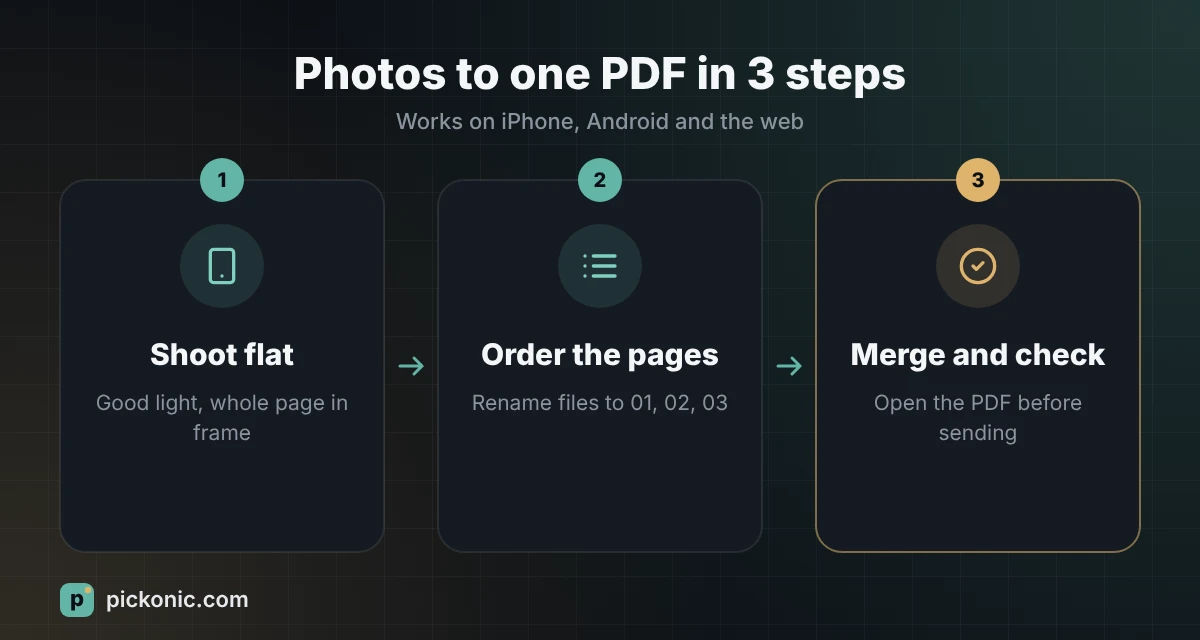
Start with the photo, not the converter
Most bad PDFs are bad because the photos were bad. A converter cannot rescue a page that is dark, tilted or cut off at the edge. Spend a minute on the shot:
- Use daylight or a bright lamp, and put the paper on a dark, flat surface.
- Hold the phone straight above the page, not at an angle, so the text keeps its shape.
- Keep the whole page in the frame, then crop to the paper edges before converting.
- Shoot every page the same way, in the same orientation.
- Avoid your own shadow across the paper. Move the phone, not the lamp.
If you only need a clean scan, skip the camera app and use the scanner built into your phone, covered next. It straightens and crops automatically.
Method 1: the scanner already on your phone
iPhone
Apple’s support guide to scanning documents describes two routes. In Notes, open a note, tap the attachment button and choose Scan Documents. In Files, tap the More button and choose Scan Documents. Both give you automatic or manual capture, corner adjustment and filters, and the result is saved as a PDF. In Files you can pick where to save it.
Android
Google’s help page on scanning documents with Google Drive explains the steps. Open the Drive app, tap the camera button, photograph each page, adjust crop, rotation and filter, tap Done, name the file and choose PDF before saving. Menu names change between app versions, so if you do not see the camera button, look under the plus button for Scan.
This is the best option when you are scanning paper that you are holding right now. Its weak point is that you cannot easily mix the pages with photos that are already saved in your gallery.
Method 2: convert photos you already have
This is the common case: the photos exist, some are screenshots, some came through WhatsApp, and you need them in one PDF in the right order. A browser tool is the quickest way.
- Rename or note the page order first. Pages named 01, 02, 03 stay in sequence.
- Open the free JPG to PDF converter in your phone’s browser and choose your images. It accepts JPG, PNG and WebP, up to 100 images.
- Use the arrows under each thumbnail to fix the order, and the cross to remove a wrong shot.
- Choose A4 for most forms in the Gulf, Europe and most of the world, or Letter for US documents. “Same as image” avoids white borders for screenshots.
- Tap Create PDF and the file downloads to your phone.
The tool says the conversion happens in your browser and the images are not uploaded. That matters if the pages include a passport, an Emirates ID or a bank statement. With any converter, check that claim before you hand it identity documents.
The iPhone HEIC problem
iPhone photos are often saved as HEIC, which browsers cannot always read. If the converter rejects a photo, go to Settings, Camera, Formats and choose Most Compatible so new photos are JPG, or export the old photo as JPG first.
Method 3: print to PDF from the share sheet
Both systems can create a PDF from a set of selected photos without any extra app, through the share or print options. The steps and names change between phone makers and OS versions, and we have not tested every model, so treat this as a fallback. If the share sheet offers Print or Save as PDF for your selected photos, it works, but you have less control over page size and order than in Method 2.
Which method should you use?
| Situation | Best choice | Why |
|---|---|---|
| Scanning paper in front of you | Notes, Files or Drive scanner | Auto crop and straightening |
| Photos already in your gallery | Browser converter | Reorder and mix photos and screenshots |
| Passport, ID or bank pages | Scanner or an on-device converter | Nothing leaves your phone |
| One page only | Any of them | Order does not matter |
When the PDF is too big to upload
Twelve photos from a modern phone can easily produce a PDF of tens of megabytes, and many portals refuse that. We could not find a published size limit for specific Saudi or UAE government portals, so the practical rule is to read the limit shown on the upload page and compare it with your file size.
If you are over, run it through the Compress PDF tool. It offers light, recommended and strong levels. There is one trade-off: each page becomes an image, so the text in the compressed file cannot be selected or searched. That is fine for a signed form or an ID. Keep the original if you need to copy text later.
Mistakes that cost people a second attempt
Take a hypothetical case: a visa application asks for a passport page, a bank statement of three pages and a letter, all in one PDF. You photograph five pages in a rush, and two are slightly tilted. The portal accepts the file, then a reviewer asks for a clearer copy and you lose a day. Most rejections come from the same short list.
- Wrong order. The statement comes before the passport because the photos were taken in a different sequence. Fix the order in the converter, not afterwards.
- Cut-off corners. A missing corner can hide a reference number or a stamp.
- Several PDFs instead of one. If the portal wants one file, do not upload five.
- Over-compressing. Strong compression on a small-print contract can make the numbers hard to read. Check before you send.
- Sending the original photos too. Unless asked, send only the PDF.
Check the PDF before you send it
- Open it and scroll through every page. Is the order right?
- Zoom in on a signature and a number. Can you read both?
- Check the file name. “IMG_4821.pdf” tells the recipient nothing; “Lease-2026.pdf” does.
- Look at the file size against the limit of the portal or the email provider.
If something fails, go back to the converter and rebuild it; it takes less than a minute. This article is general information. Steps in the Apple and Google apps change between versions, so use their help pages above if your screen looks different.
Frequently asked questions
Can I combine photos into one PDF without an app?
Yes. A browser-based converter works on both iPhone and Android with no installation, and you can reorder the pages before saving.
Why does my iPhone photo not appear in the converter?
It is probably a HEIC file. Switch the camera format to Most Compatible, or export the photo as JPG, then add it again.
How do I make the PDF smaller?
Compress it after creating it. Choose a light level first and check that the text is still readable, and only use strong compression if the file is still too large.
Is it safe to convert a passport photo online?
It depends on the service. Prefer a tool that works entirely on your device, or use your phone’s built-in scanner. Avoid sites that upload your file and keep it.
How many photos can go in one PDF?
With our converter, up to 100 images. Very large photos are scaled down slightly so the PDF stays manageable.